Setup Zoom to upload recordings
To upload Zoom recordings to an interview and have them transcribed and ready for analysis, go to an Interviews tab in your project's side nav.

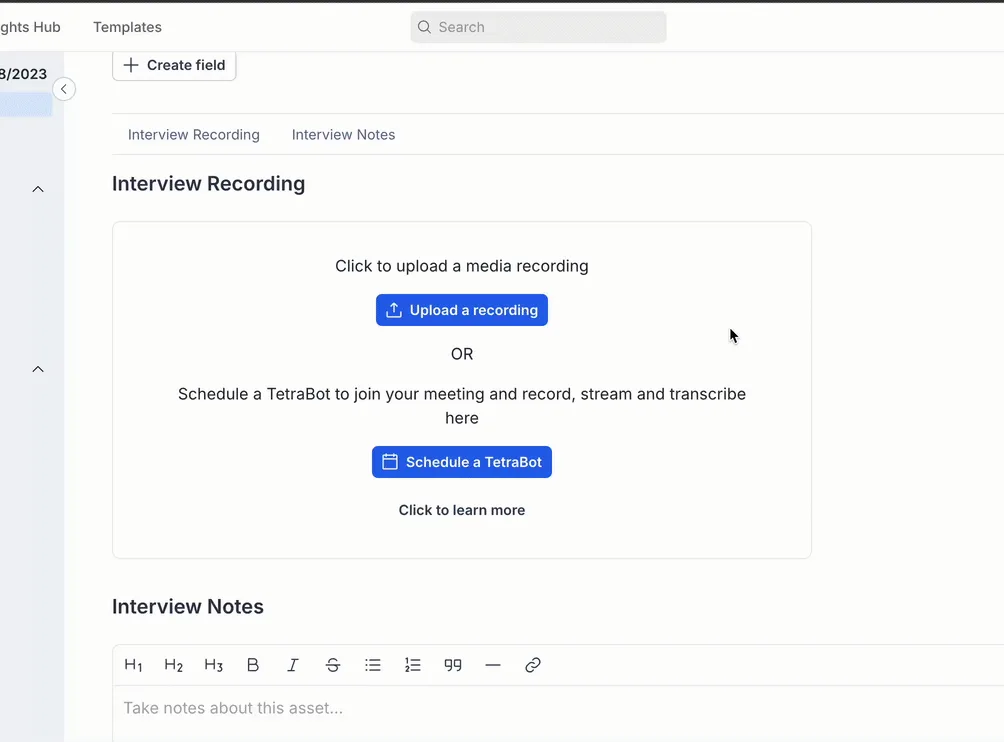
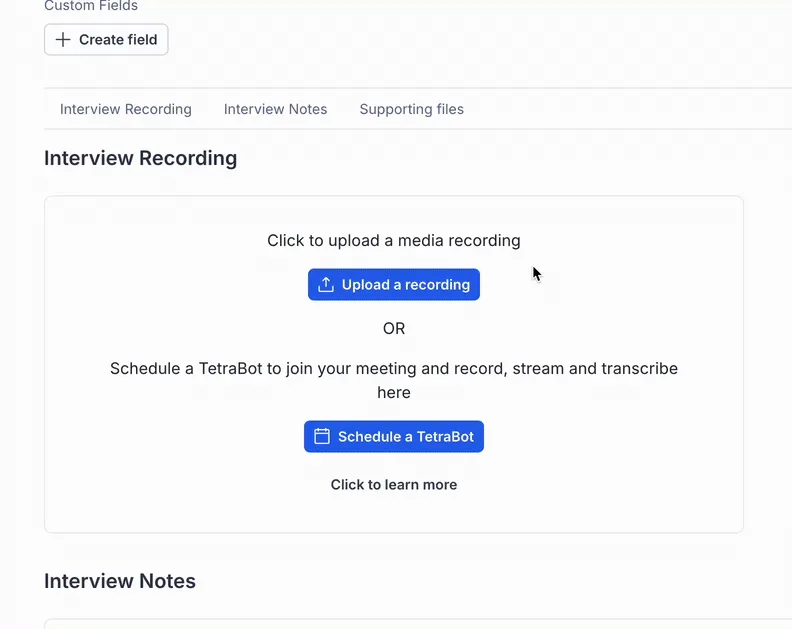
Create a new interview or go to an existing interview without a recording and then scroll to the interview recording section and click on "Upload a recording". You will then see a popup with various locations to upload from. To upload from Zoom click on the Zoom button and then the "Connect to Zoom" button.
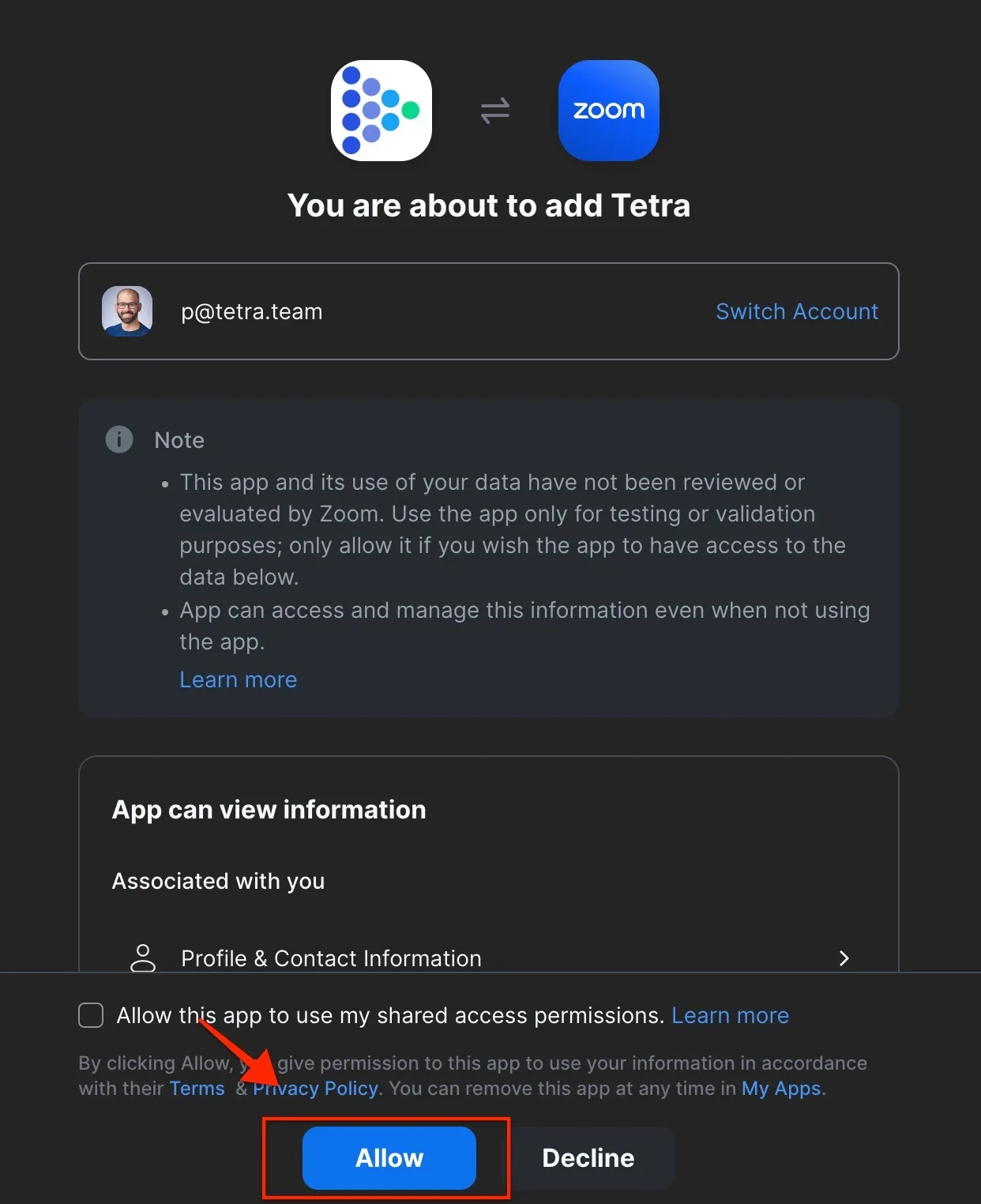
You will then be redirected to a Zoom page where you need to Allow the Tetra App to communicate with your account.
Upload Zoom recordings
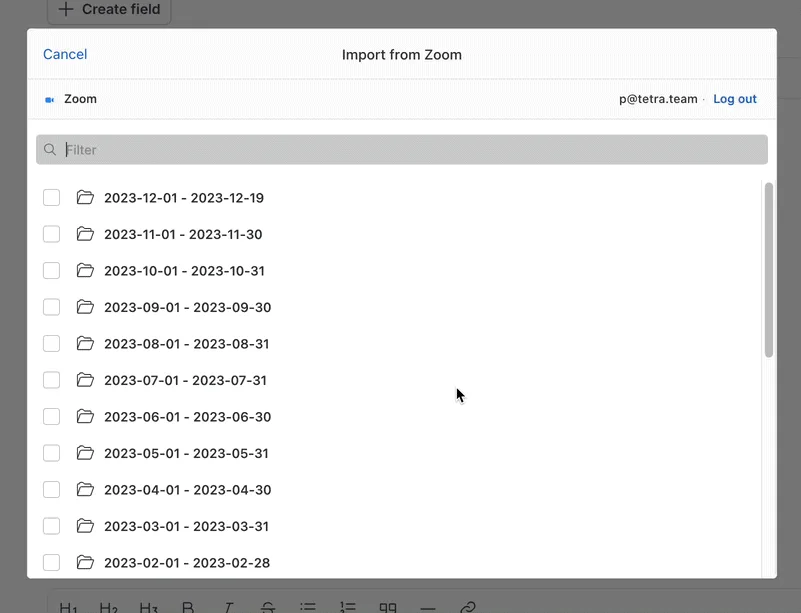
Once Zoom is allowed, pick a month and then select your relevant meeting and select the audio or video recording to upload.
Disconnect Zoom
To disconnect your Zoom, click on the upload recording in the interview page. Then click on Zoom, and click on the "Log out" button in the far left corner.
Once you disconnect from Zoom, you will no longer have access to the recordings to upload and you will have to reconnect to access them again.
Have TetraBot record your Zoom meetings
You can have a TetraBot join your Zoom recordings and automatically download them afterwards to your interview. Learn how to set it up here