Automatically record and stream your upcoming Zoom, Google Meet, and Microsoft Teams meeting by scheduling a TetraBot to join.
⚠️ You must schedule using the Schedule a TetraBot button. You can no longer do so by using the Interview Date and Interview Link field.
How to set up a TetraBot to join your meeting
Create an interview in your project and navigate to the Interview Recording section.
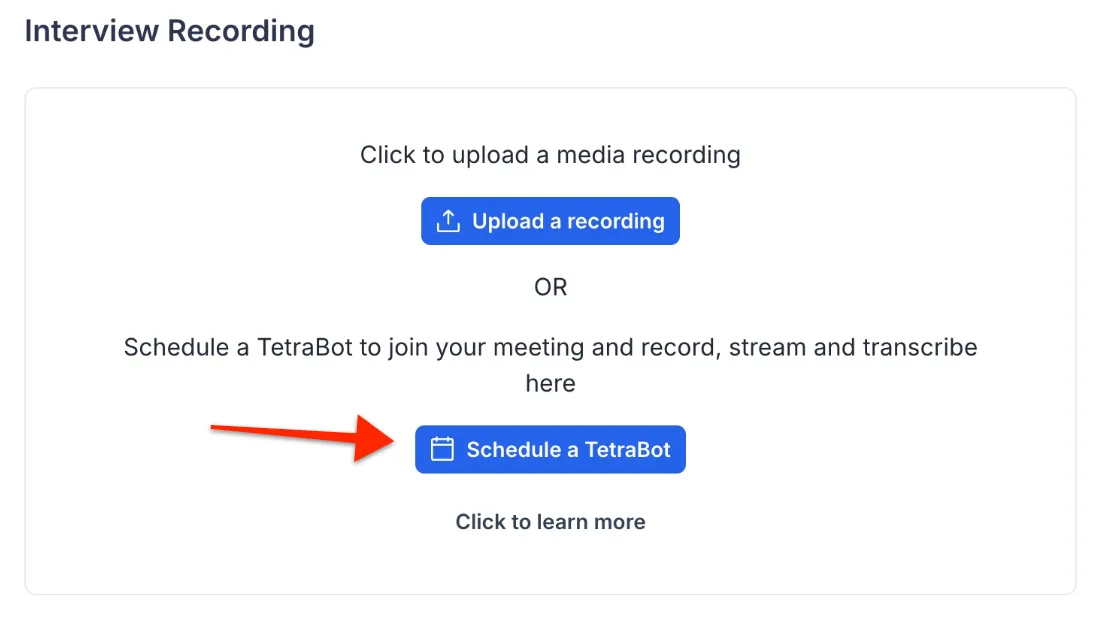
From there you can click on Schedule a TetraBot. This will open up a modal where you can either:
- Schedule TetraBot for an upcoming meeting
- Launch TetraBot now
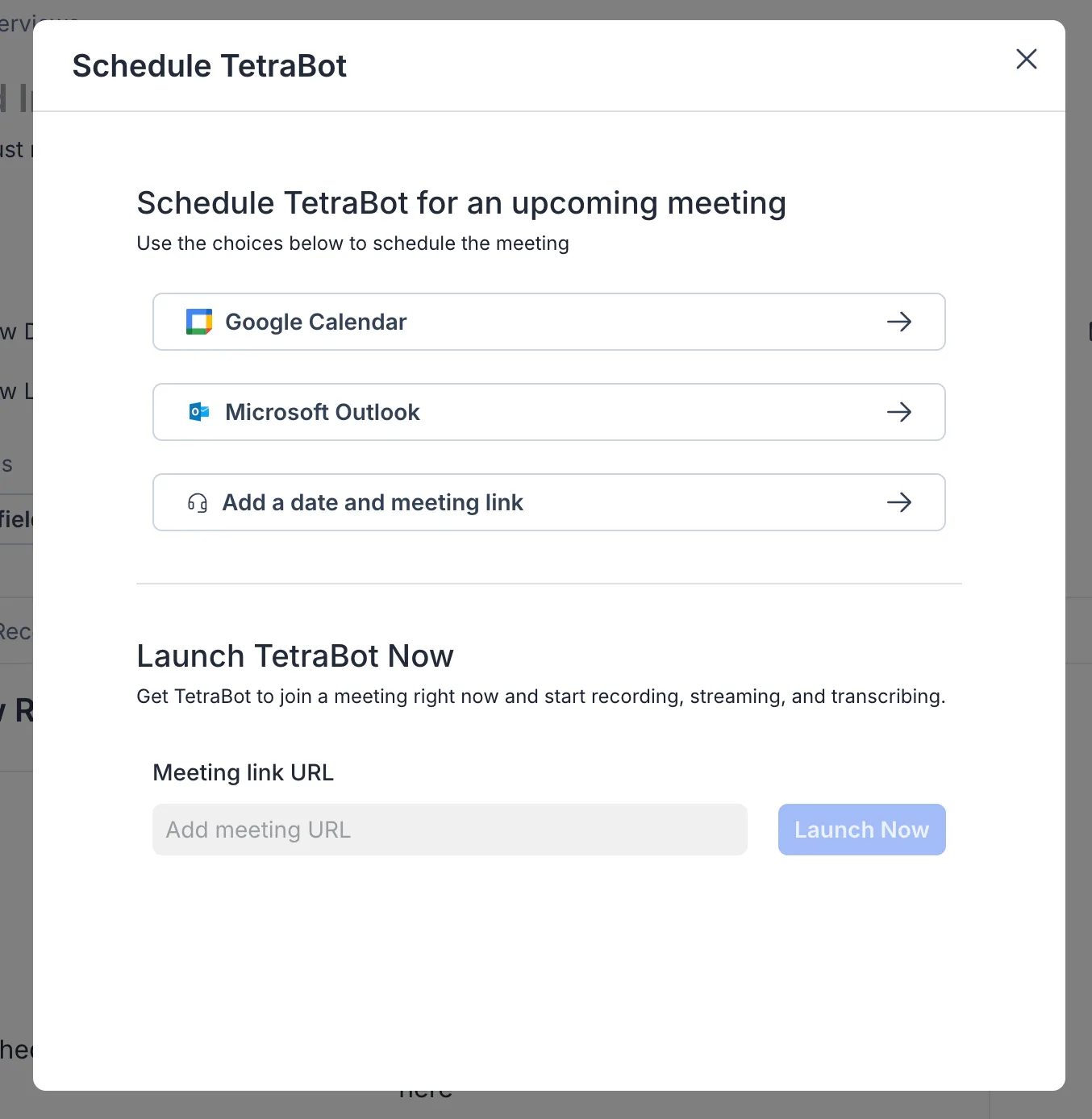
Schedule TetraBot for an upcoming meeting
To schedule a TetraBot for an upcoming meeting, select one of the 3 options.
Integrating with Google Calendar or Microsoft Outlook
Click on Google Calendar or Microsoft Outlook and a modal will pop up asking you to connect. Log in with your respective email, allow Tetra Insights access, and, once you are connected, your meetings will appear in a list.
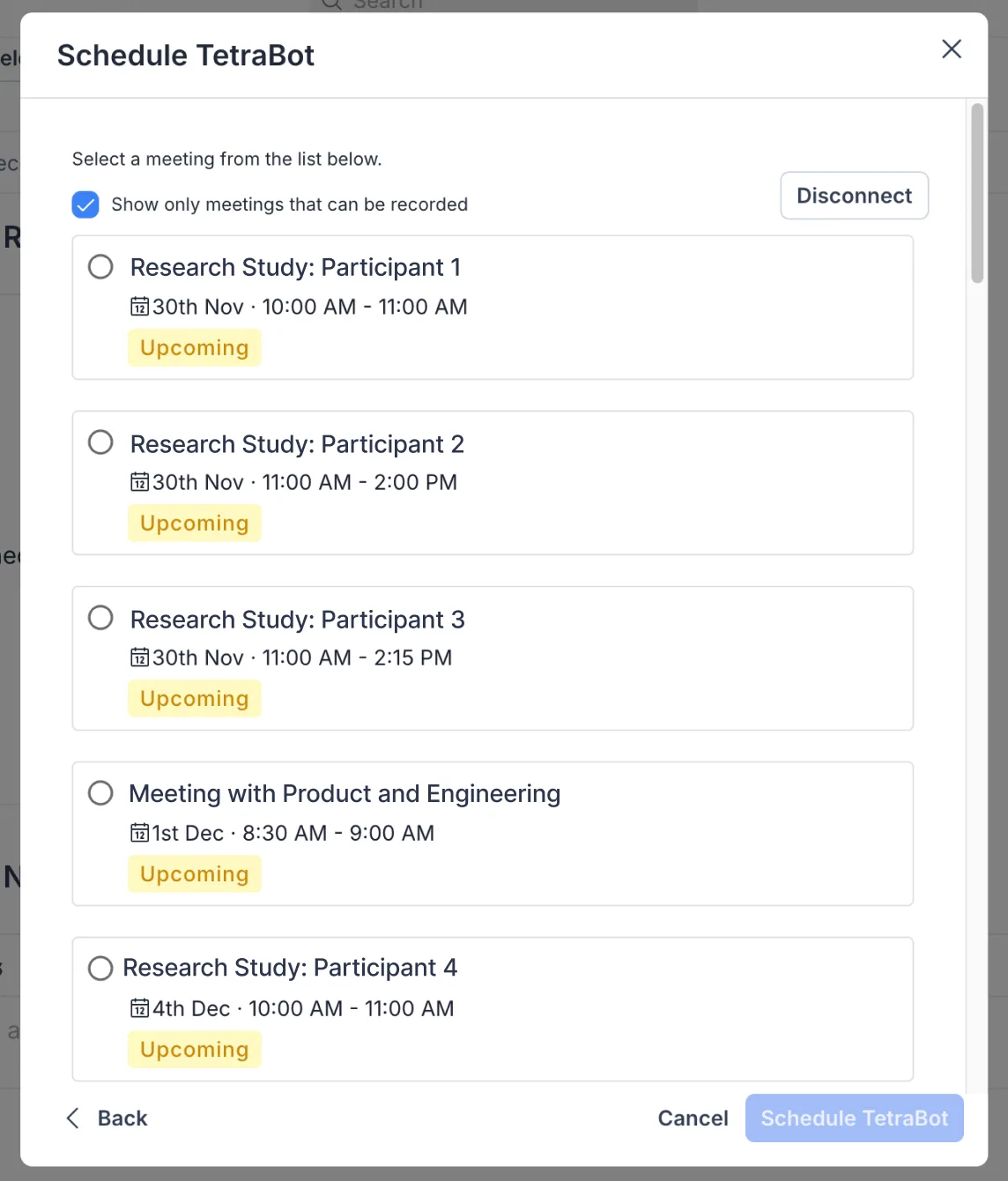
Note: You can click on the disconnect button to remove the integration to this calendar and log in with a different calendar.
The list currently only shows meetings for the next 2 weeks and is filtered based on meetings that have a URL from Zoom, Google Meet, or Microsoft Teams.
Select the meeting you want TetraBot to join and then click on Schedule TetraBot.
Add a date and a meeting link
Need a way to have TetraBot record a meeting that is not on your calendar? Click Add a date and meeting link and enter the date and link yourself.
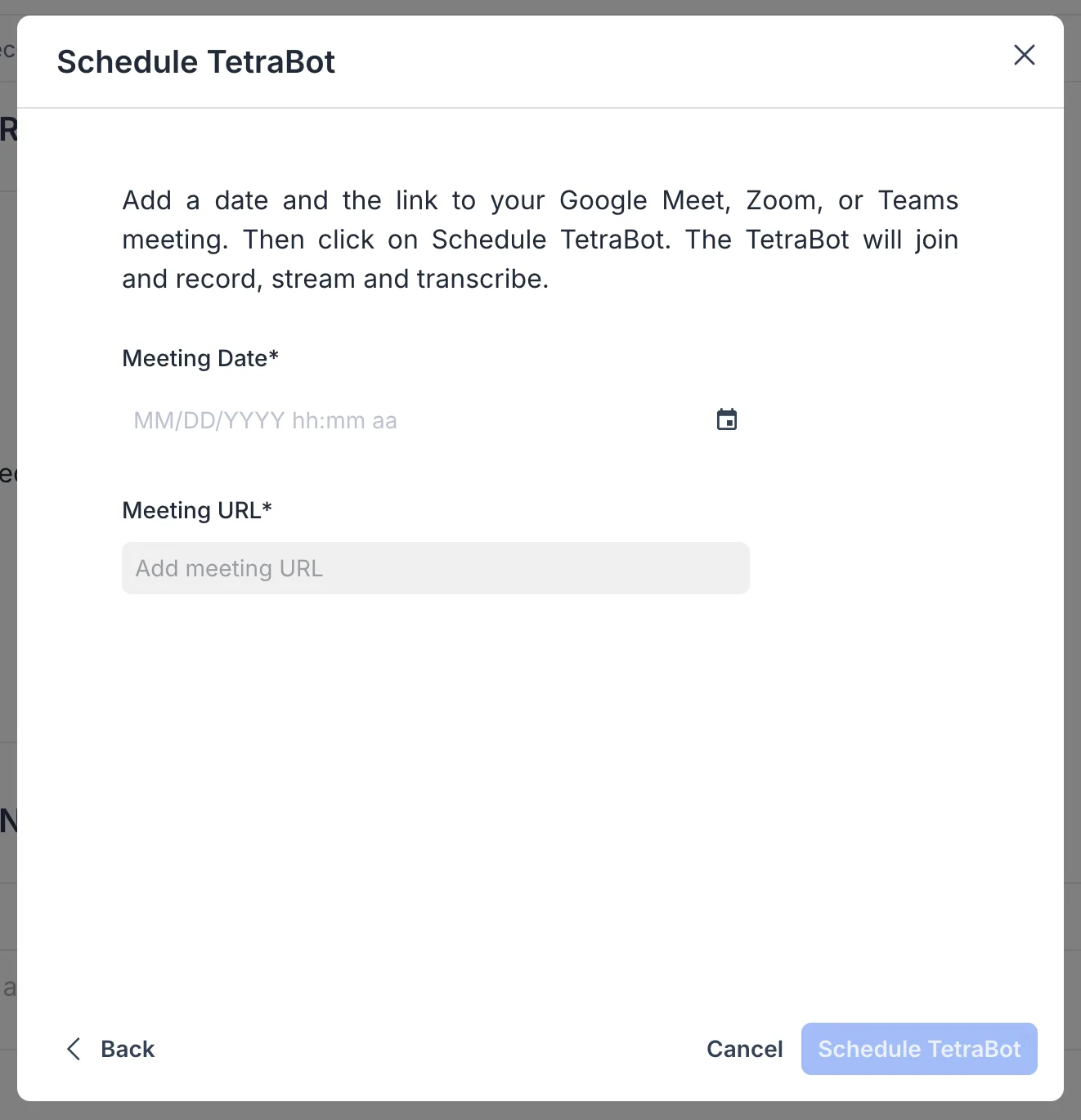
Once you add a meeting date and link, click on the Schedule TetraBot button.
Manage a scheduled TetraBot
You've scheduled a TetraBot. Your interview updates in two places.
The Fixed Fields section fills in the Interview Date and Interview Link:

The Interview Recording section confirms the booking:
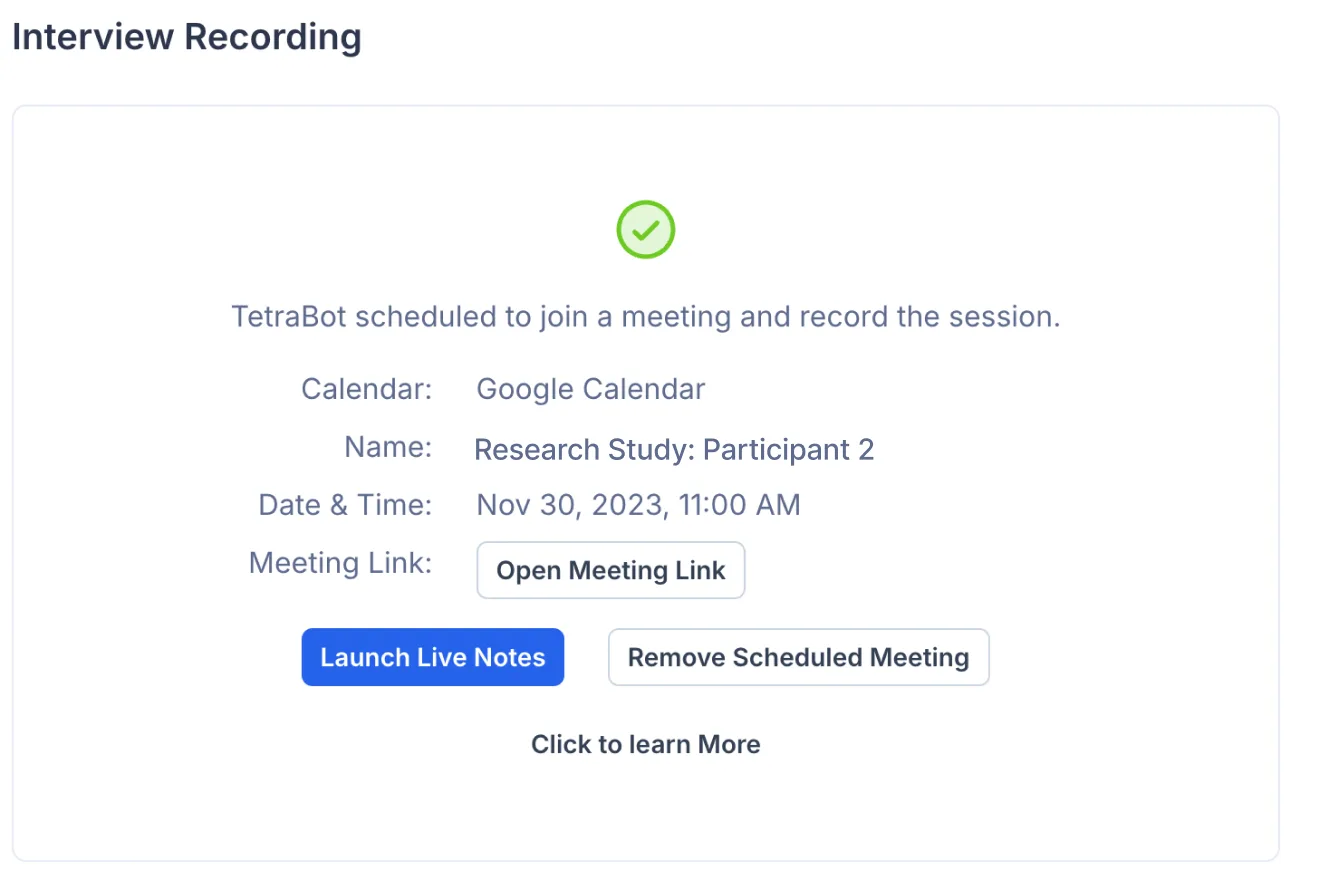
Cancel a TetraBot
Click on the Remove Scheduled Meeting button in the Interview Recording section to cancel the TetraBot. The Interview Recording section will then reset to its default state and you can schedule a new TetraBot or upload a recording.
Launch the meeting associated with the TetraBot
Clicking on Open Meeting Link will open a new window to the relevant meeting url (Zoom, Google Meet, Teams).
Launch Live Notes
Clicking on Launch Live Notes opens the Live Note taking app in a separate browser.
Launch a TetraBot immediately
To have a TetraBot join a meeting immediately click on the Schedule TetraBot button.
And then paste the meeting url into the link input at the bottom of the modal and click Launch now.
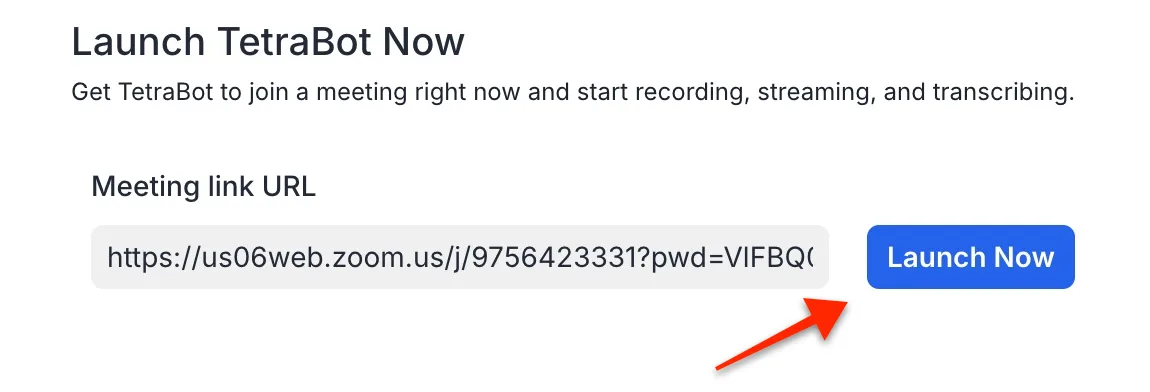
A TetraBot will join your meeting and start recording within a minute or so.
TetraBot Demo
FAQ
If the calendar meeting changes date or time, will the TetraBot update?
Yes. If your calendar event changes, the TetraBot will receive those time changes and will update and join on the new time/date.
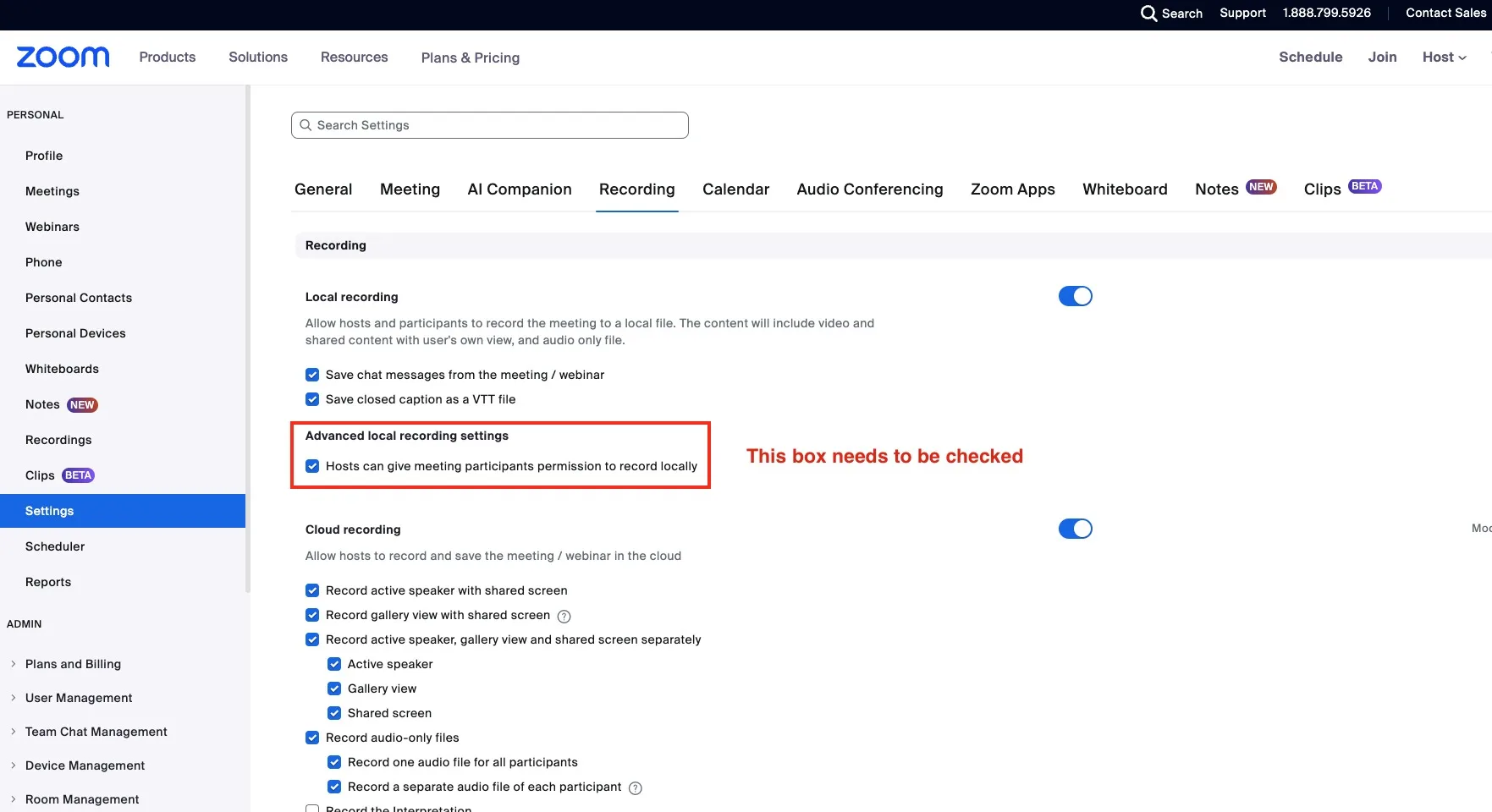
I set up my Zoom recording but TetraBot did not record, what happened?
Make sure that you are the host of the meeting and that you have this setting checked in your Zoom account: "Hosts can give meeting participants permission to record locally". You can enable it by logging into your Zoom account at Zoom.us. Then, go to Settings → Recording → Advanced Local Recording and make sure it is checked.